- July 31, 2026
- 6 min read
How to onboard your team to a tournament
Your team just got invited to a tournament - now what? On Playmaker App, going from an invitation to a locked-in, match-ready roster takes a few minutes on your phone. This guide walks the whole journey as a team owner: sign in, open the invitation, accept it, build your roster, and submit it to the organizer.
Get Playmaker Sports on your phone and start with step one.


- 1Sign inUse the one-time code we email you.
- 2Open the invitationIt’s waiting on your home screen and on the tournament page.
- 3Accept & continueOne tap registers your team for the tournament.
- 4Build your rosterAdd players to your squad and select who takes the field.
- 5Review & submitAssign a captain, review the squad, and send it for verification.
1. Sign in to Playmaker App
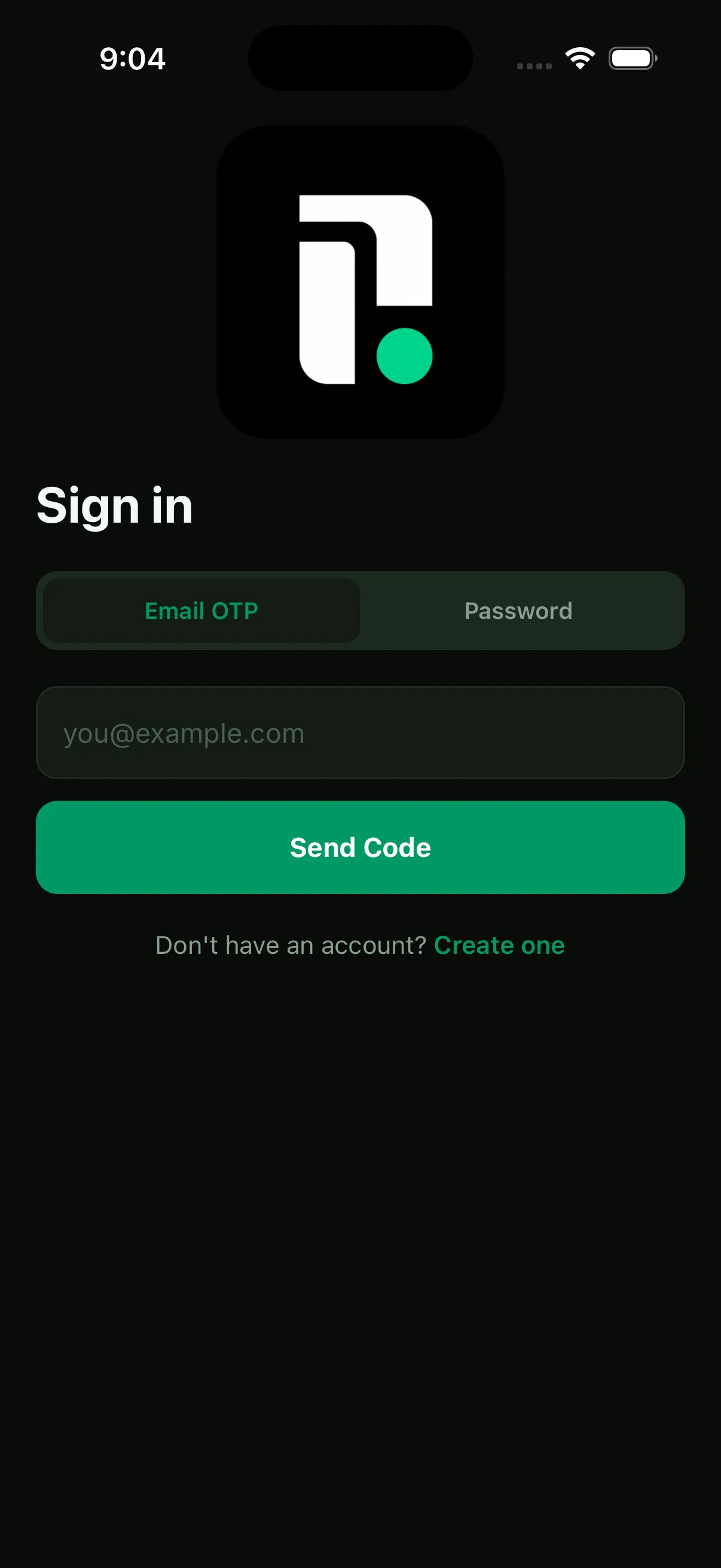
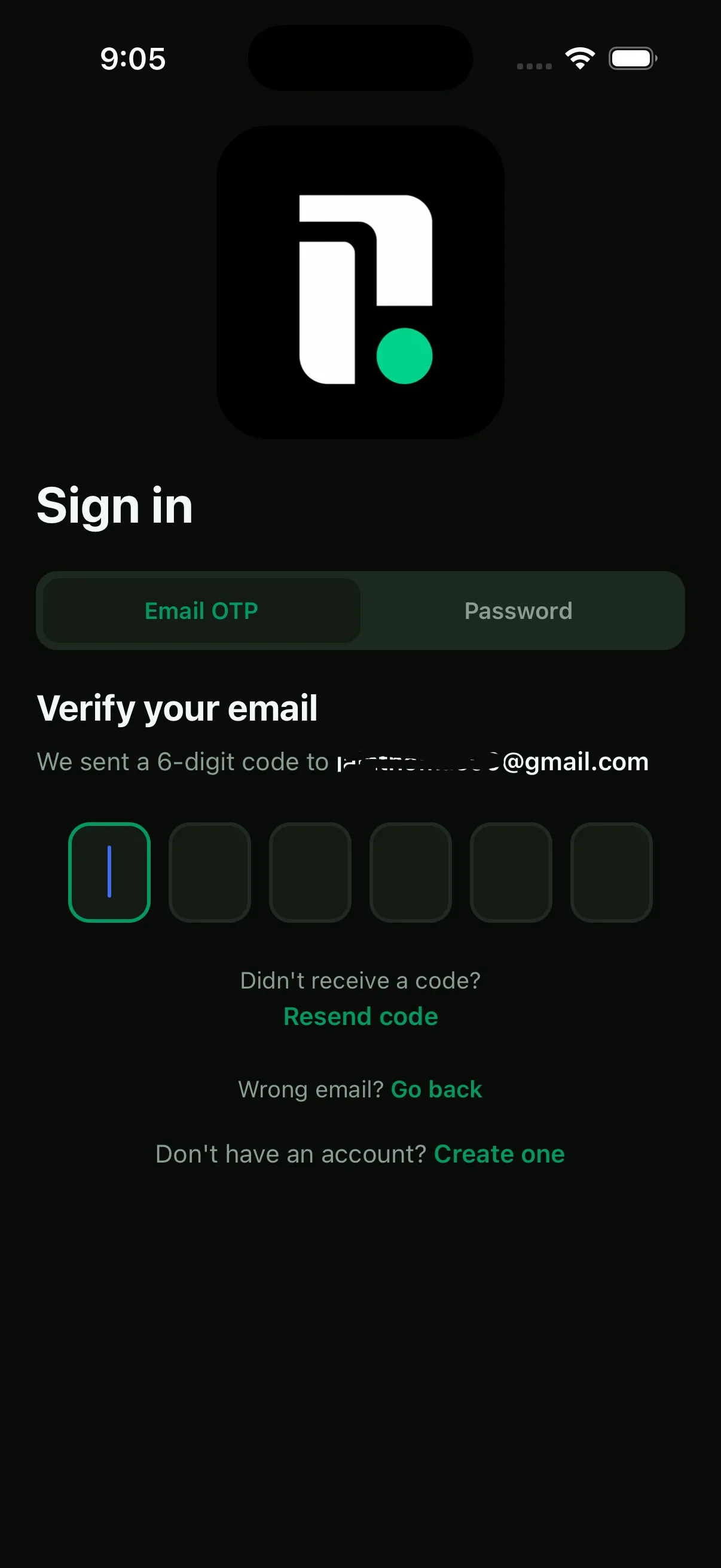
Open the app and sign in with the email your team is registered under. Enter your address, tap Send Code, and type the 6-digit code we email you.
2. Open your invitation
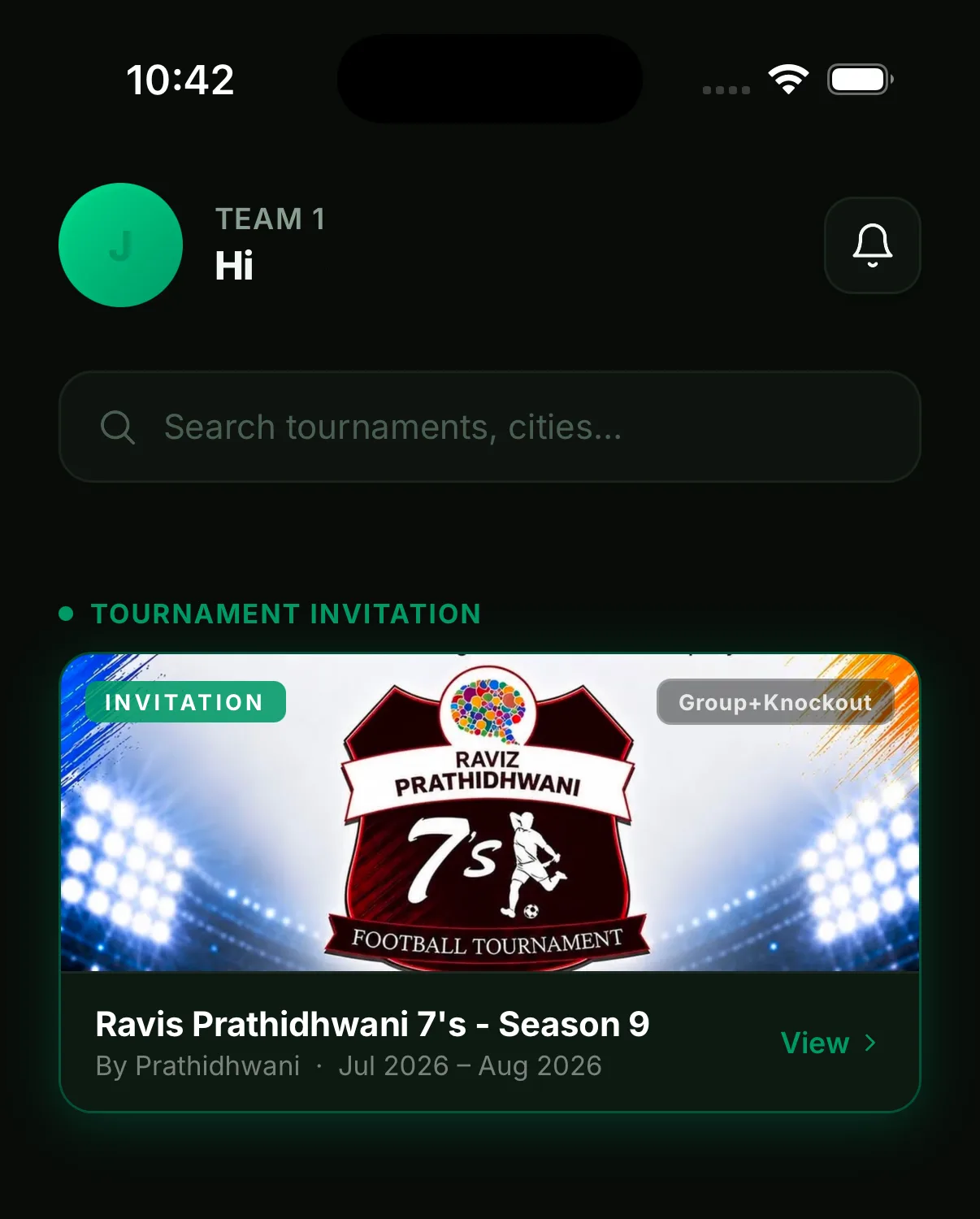
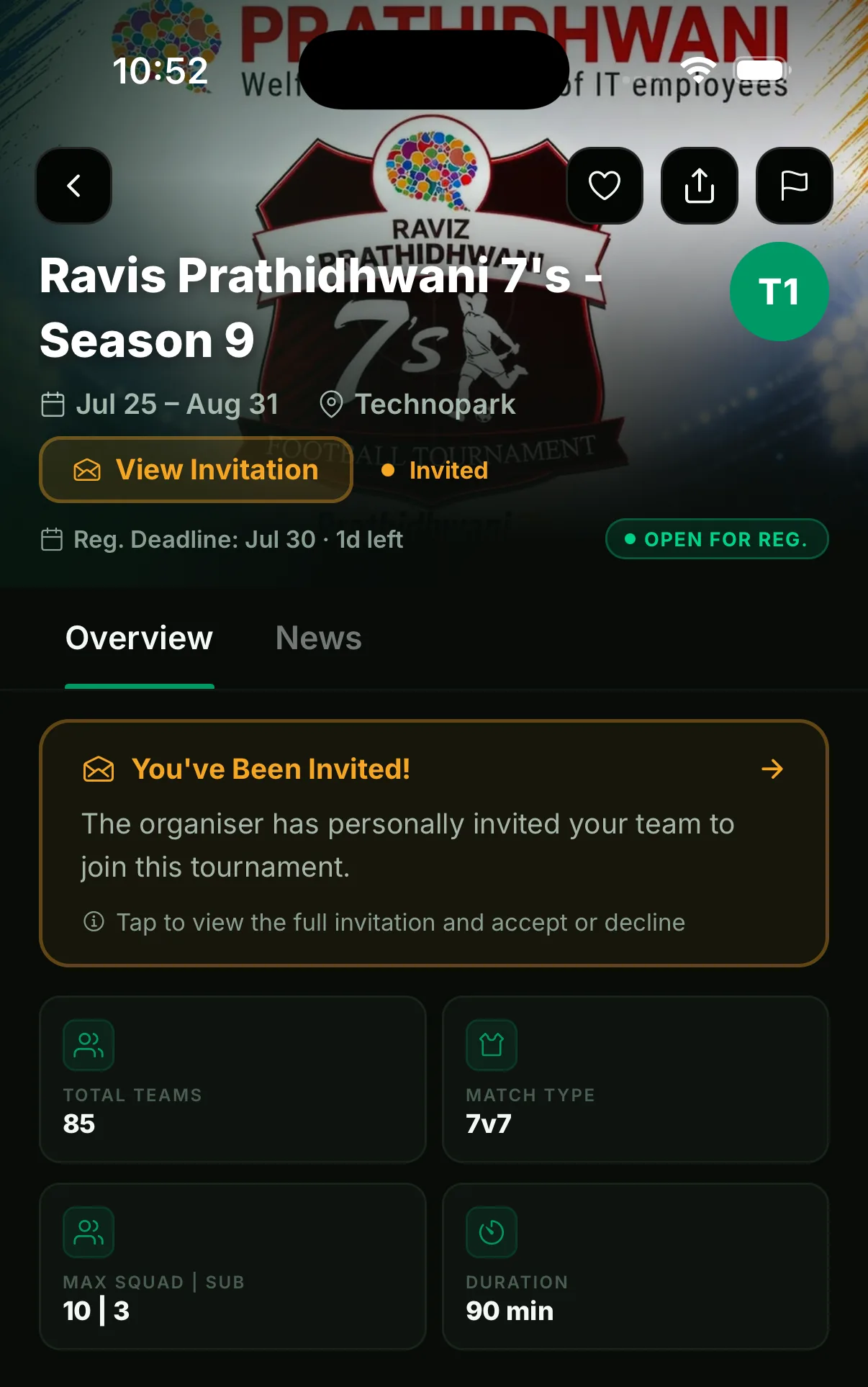
When an organizer invites your team, the invitation lands right on your home screen under Tournament Invitation. Tap View to open the tournament page - you’ll see the dates, venue, format and rules at a glance, plus a “You’ve Been Invited!” banner. Keep an eye on the registration deadline shown under the title: invitations expire when registration closes.
3. Accept the invitation
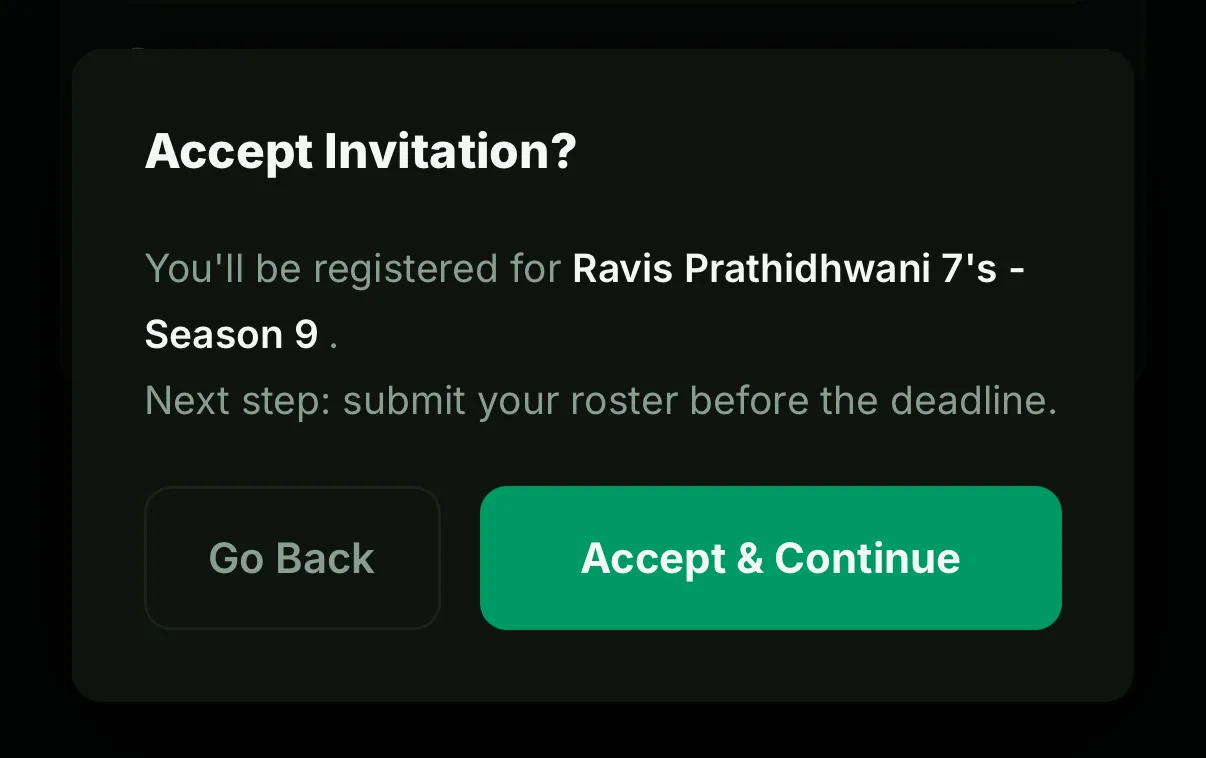
Tap the invitation banner to review it, then hit Accept & Continue. That’s it - your team is registered. The app immediately points you at the next job: submitting your roster before the roster deadline.
4. Start your roster
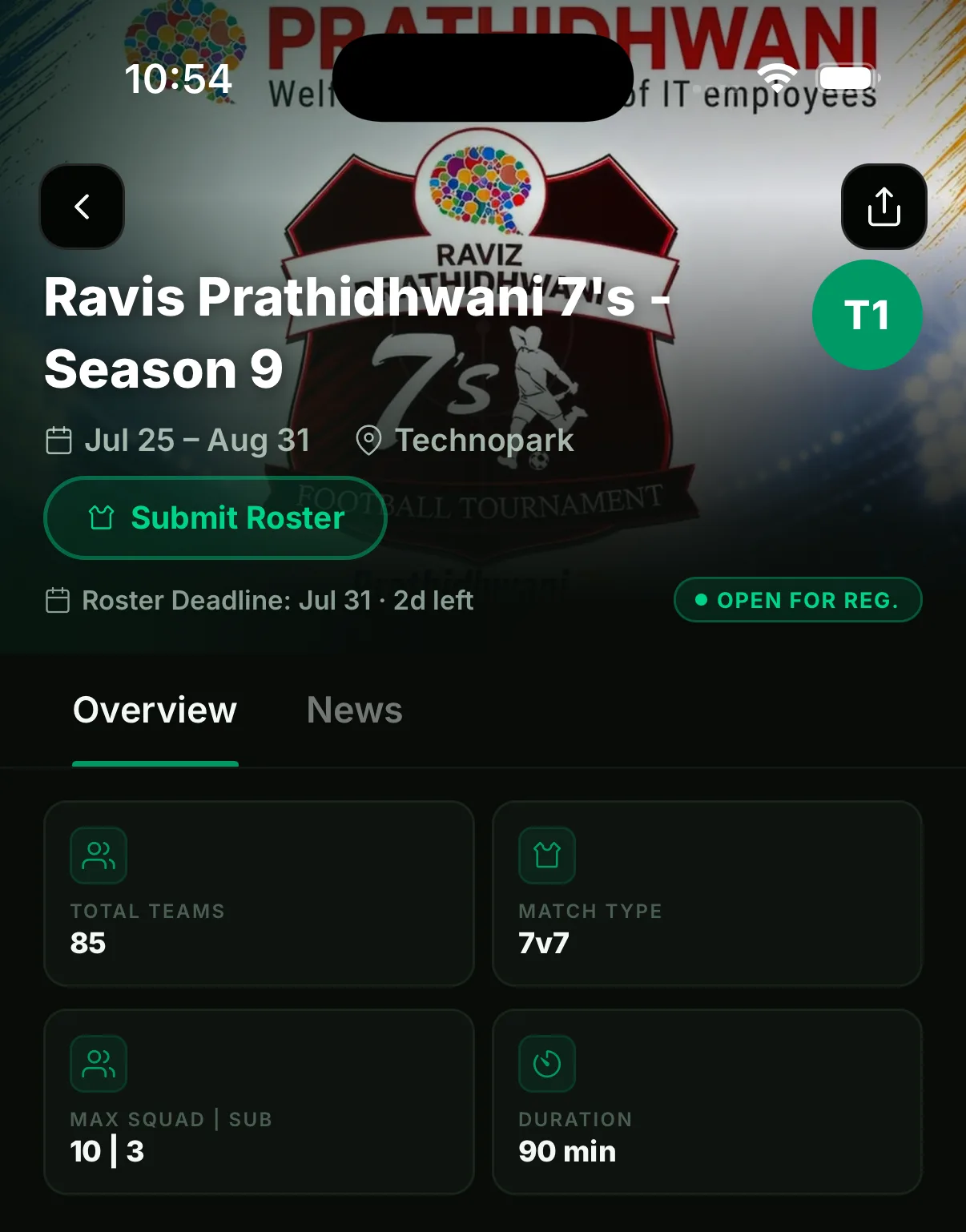
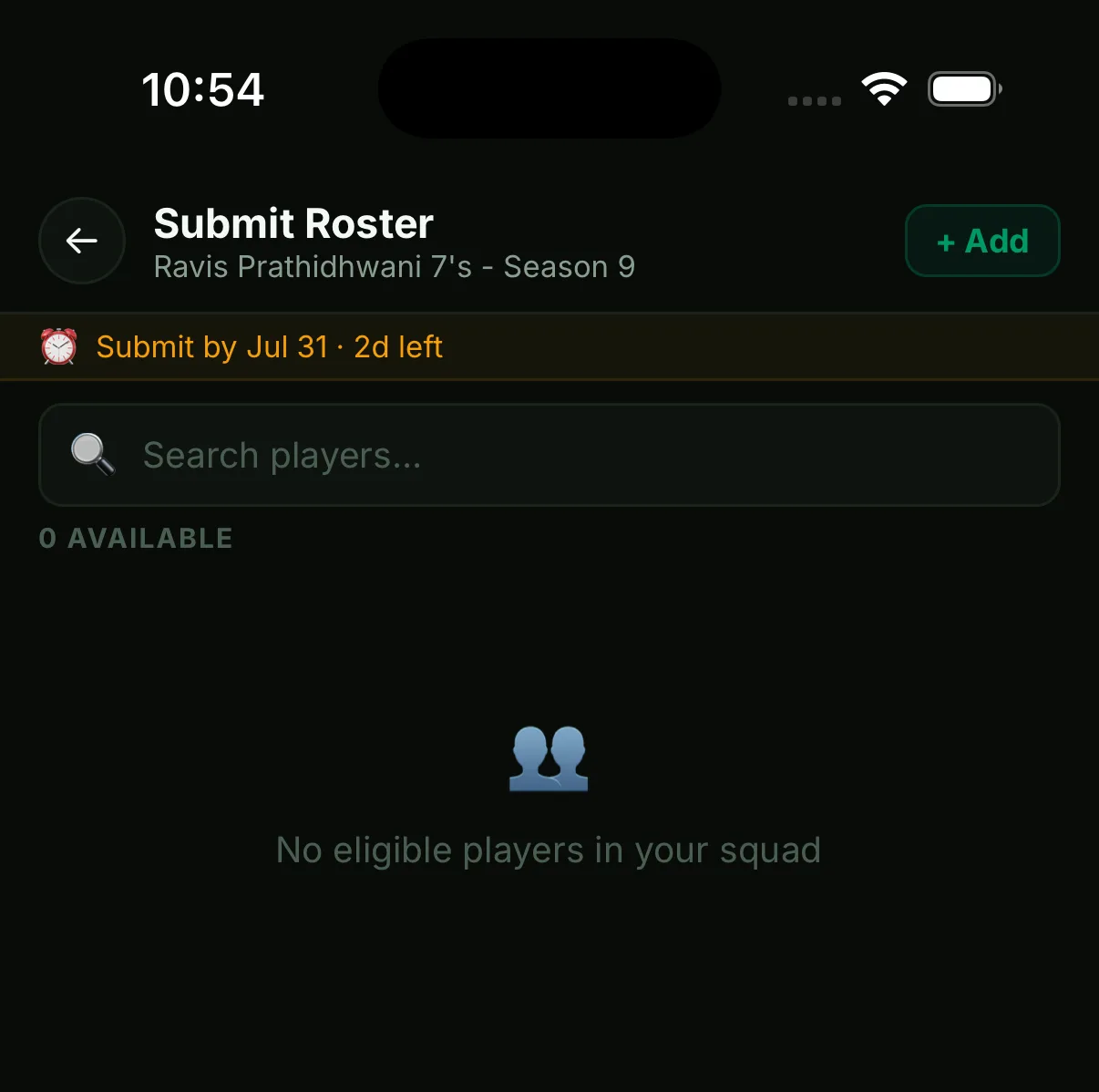
Back on the tournament page, the call to action changes to Submit Roster, with the deadline right below it. If your squad is new you’ll see “No eligible players in your squad” - no problem. Tap + Add to bring players in without leaving the flow.
5. Add players to your squad
Search any player on Playmaker App by name or @playm-id and tap Add. Each result shows the player’s position and shirt number, so you know exactly who you’re signing. Add as many as you like, then tap Done to return to selection.
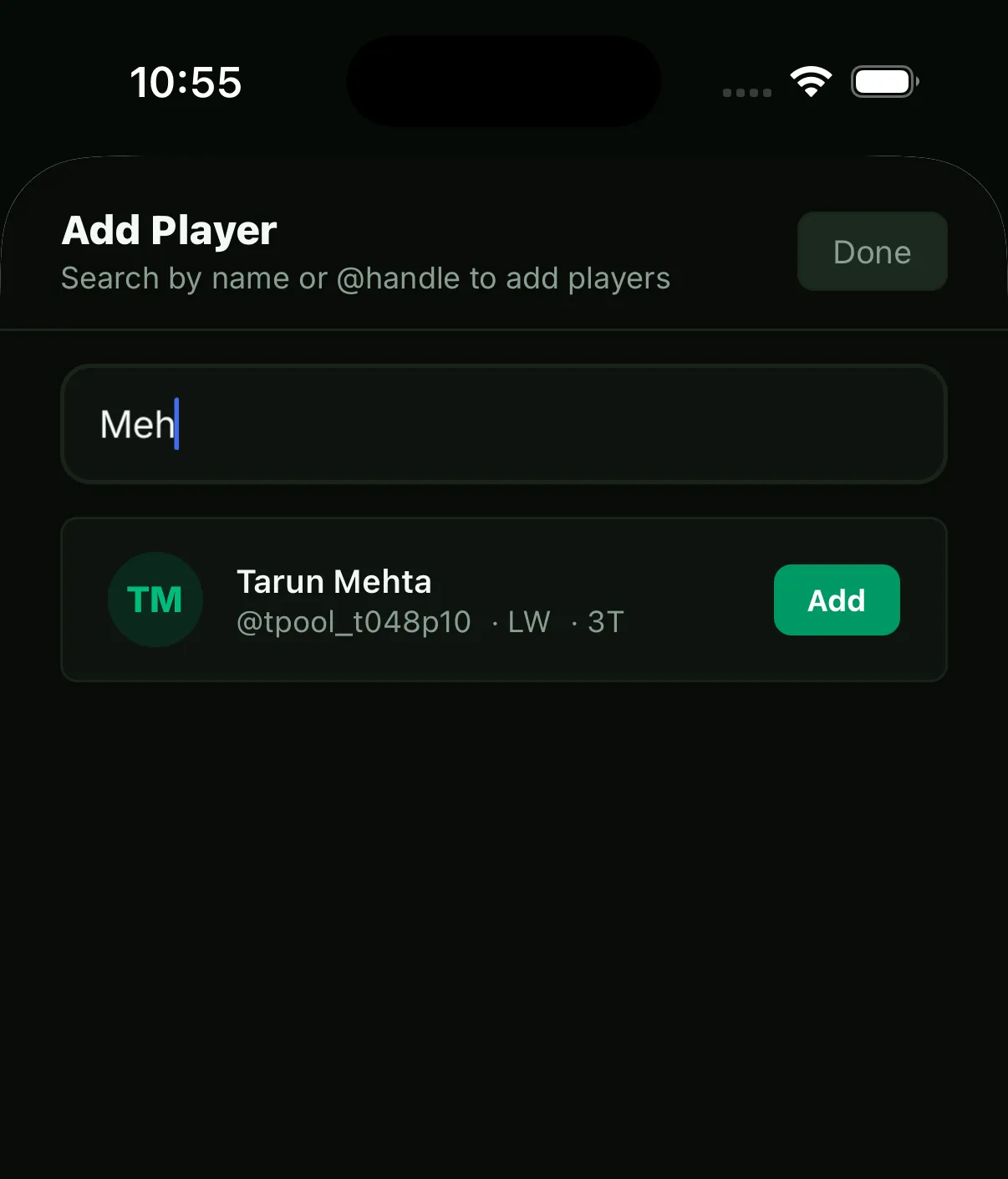
@playm-id and add them on the spot.6. Select your players and review
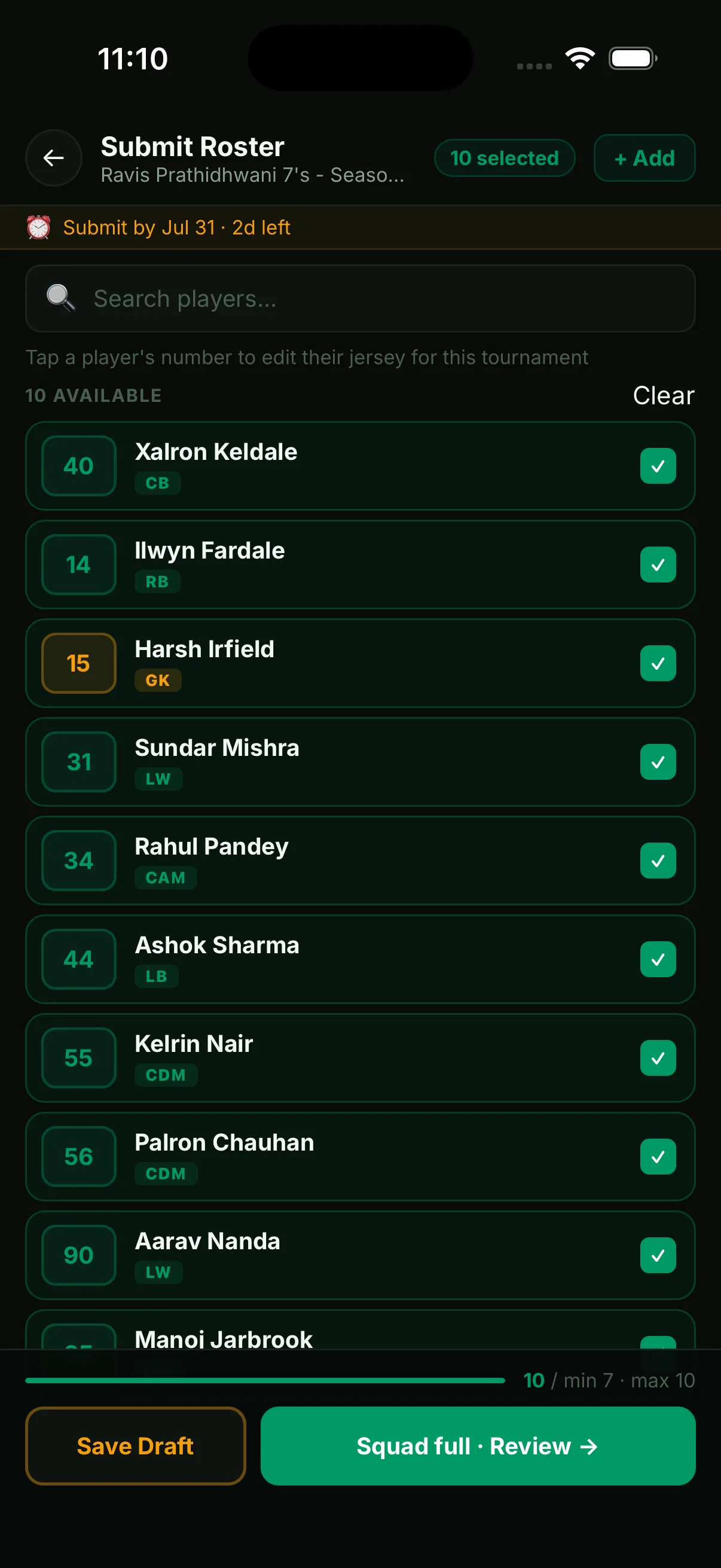
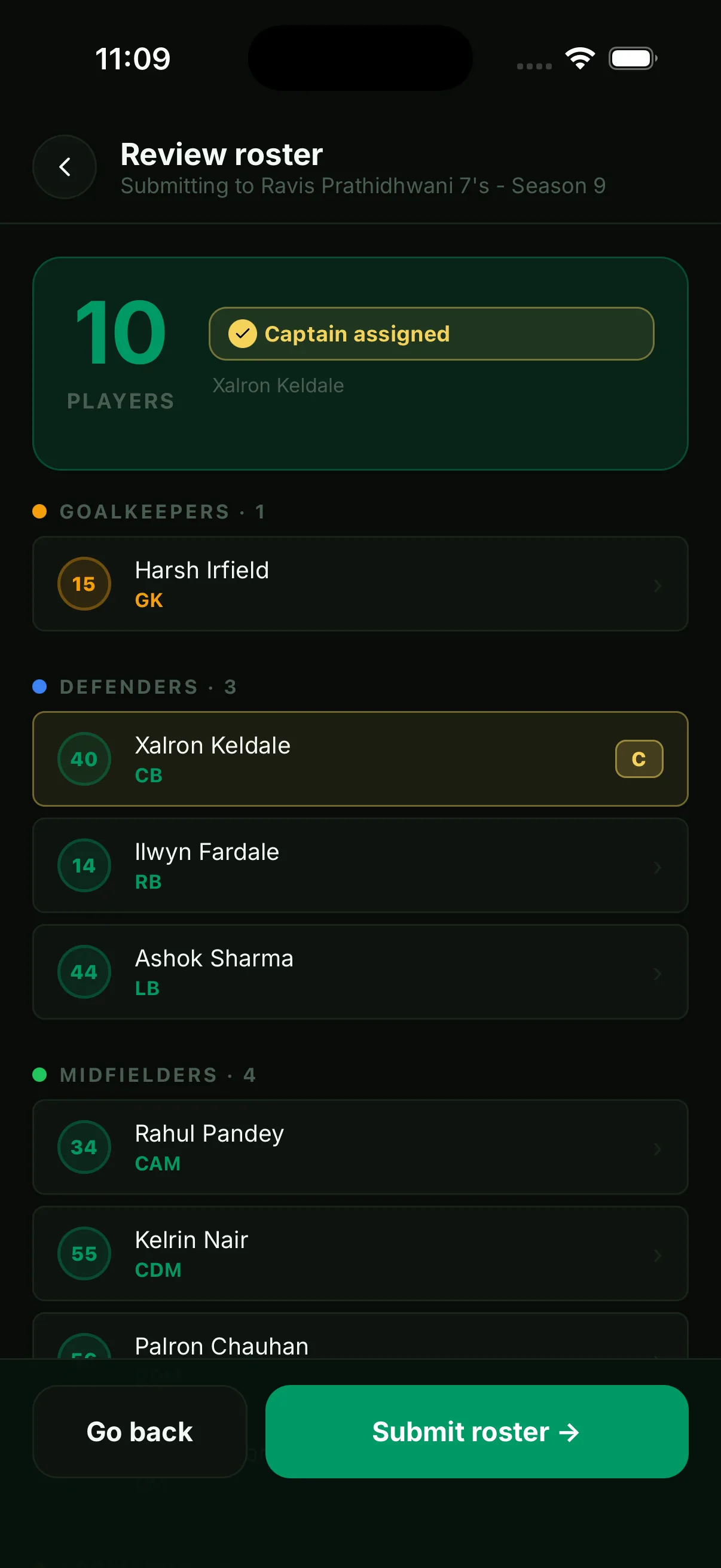
Tick the players who’ll represent you in this tournament - the bar at the bottom tracks your count against the organizer’s roster rules (min 7, max 10 in this example). Tap a player’s number to change their jersey for this tournament only. Not ready to commit? Save Draft keeps your picks. When the squad is full, tap Review: you’ll see everyone grouped by position, assign the captain, and hit Submit roster.
You’re in - roster under review
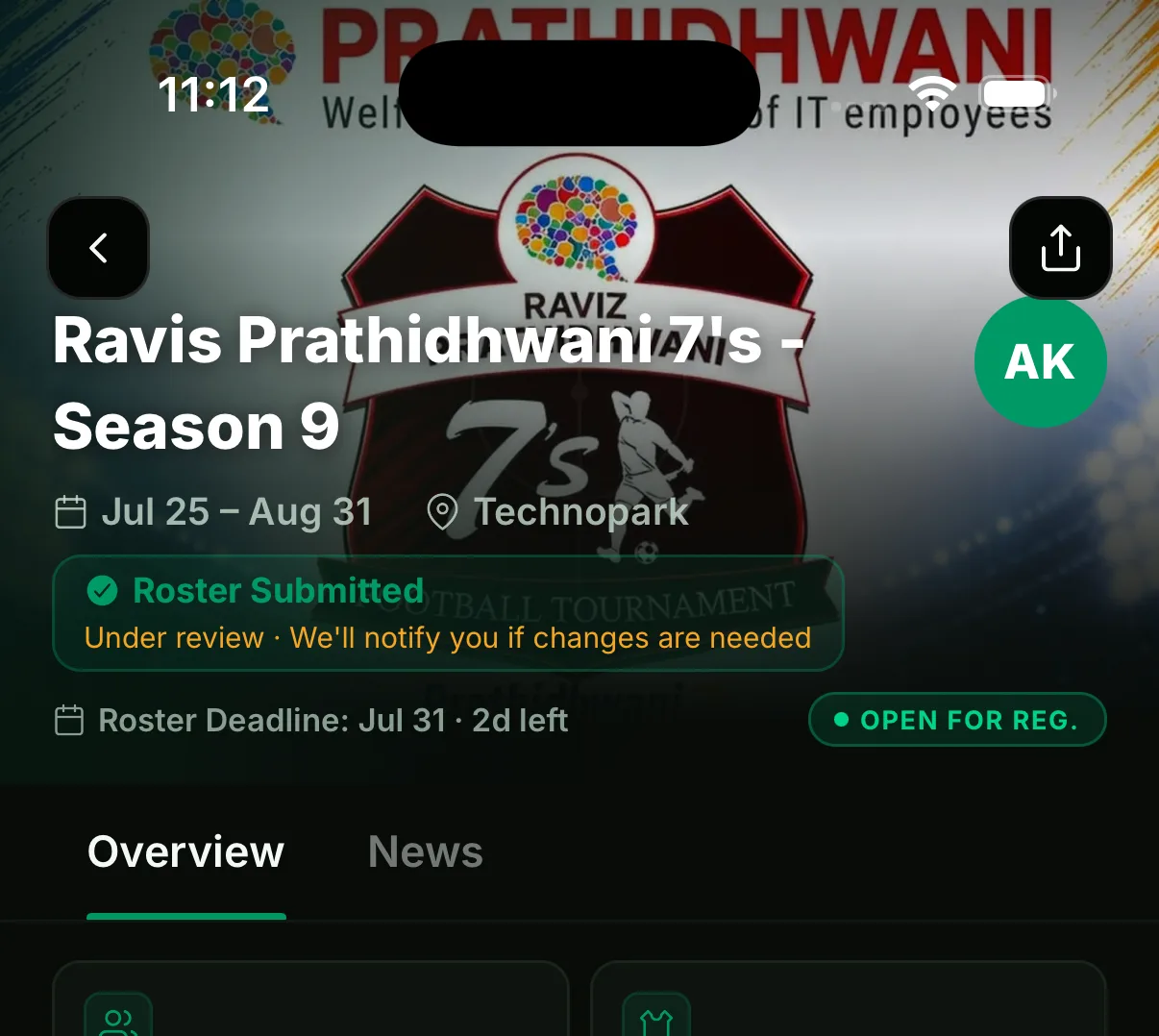
After submitting, the tournament page shows Roster Submitted. The organizer now verifies your squad - if anything needs fixing they’ll send a change request and we’ll notify you, so you can update and resubmit before the deadline. Once verified, you’re match-ready: fixtures, standings and player stats will update in real time as the tournament unfolds.
That’s the whole onboarding: from sign-in to a submitted roster in one sitting. Your squad stays with your team, so the next invitation takes even less time - open, accept, select, submit.